
AI voice interviews
Invite a candidate, monitor the session, and review transcript-backed interview scoring.
Before inviting
Use a Member or Admin account and a usable completed report. Check candidate identity, email, role requirements, and available interview allowance. Resolve any mismatch review before sending an invitation. Your workspace's assigned interview version is applied when the invitation is created; changing an assignment later does not rewrite this interview.
Create an invitation
Open a completed report and choose the interview action. Confirm the candidate email and invitation details, then create the interview link.
Send the generated invitation only to the intended candidate. Treat the link as confidential and replace it if it reaches the wrong person.
The invitation normally expires seven days after creation. Send candidates the standalone Candidate interview guide so they can prepare without reading recruiter-only instructions.
Follow invitation progress
Preparation, email delivery, candidate participation, and evaluation do not finish at the same time. A pending interview may still be preparing questions. A sent email means the provider accepted it, not that the candidate opened it. A completed conversation can still be awaiting evaluation.
Use resend when the current eligible invitation needs another email. A reinterview is a new attempt and uses the current workspace assignment and allowance; do not create one merely to resend a link. An in-progress interview cannot be replaced. If the app offers a retry after preparation or evaluation failure, read that action's confirmation before proceeding.
Candidate experience
The candidate opens the link in a current desktop browser, reviews the session instructions, grants microphone access, and completes a guided voice interview that normally takes about 12–20 minutes. Recommend a quiet place, a stable internet connection, and a working microphone.
Sessions move through Pending, In progress, Completed, or Expired. Completed sessions may briefly show scoring in progress while the final rating is generated.
Before starting
- Open the invitation link in a current desktop browser.
- Close other apps that are using the microphone.
- Read the recording and transcription notice.
- Select the consent checkbox.
- Choose Start interview and allow microphone access when the browser asks.
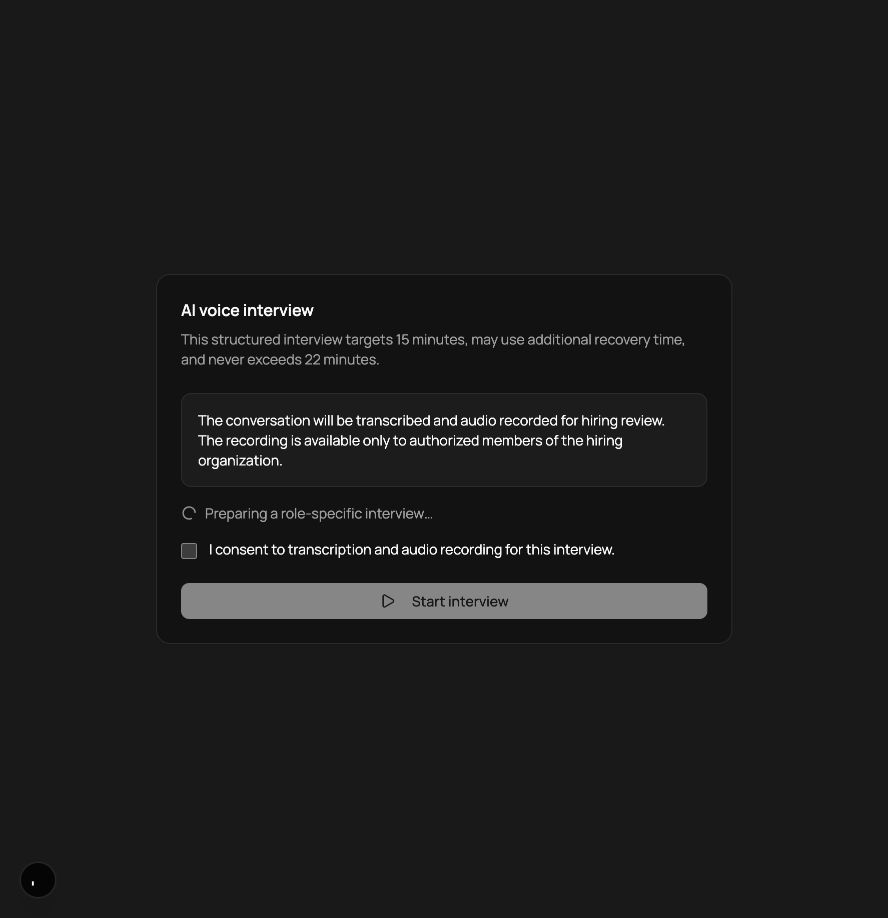
Use the interview screen
| Screen element | How to use it |
|---|---|
| Time and progress | Shows the remaining interview time and overall progress. Give complete answers, but keep them focused. |
| Voice visualizer | Indicates whether the interviewer is speaking, thinking, or listening. Wait for Listening before answering. |
| On-screen text | Displays the current prompt or conversation status. Use it as a guide if audio is unclear. |
| Microphone waveform | Moves while your microphone is receiving your voice. If it stays flat, check microphone permission and input selection. |
| Mute / Unmute | Pause your microphone temporarily. Unmute before continuing your answer. |
| End interview | Finishes the session early. Use it only when you are ready to submit the conversation. |
| Reconnect / Retry | If a connection message appears, pause speaking and follow the on-screen recovery action. |
Answer from your own experience and speak naturally. You do not need to fill every second of the available time. When the interviewer moves to the next question, finish your current thought and continue.
Review interview signal
The report's Interview & Transcript tab combines status, recommendation, decision confidence, evidence coverage, competency evidence, verified claims, strengths, risks, and transcript evidence.
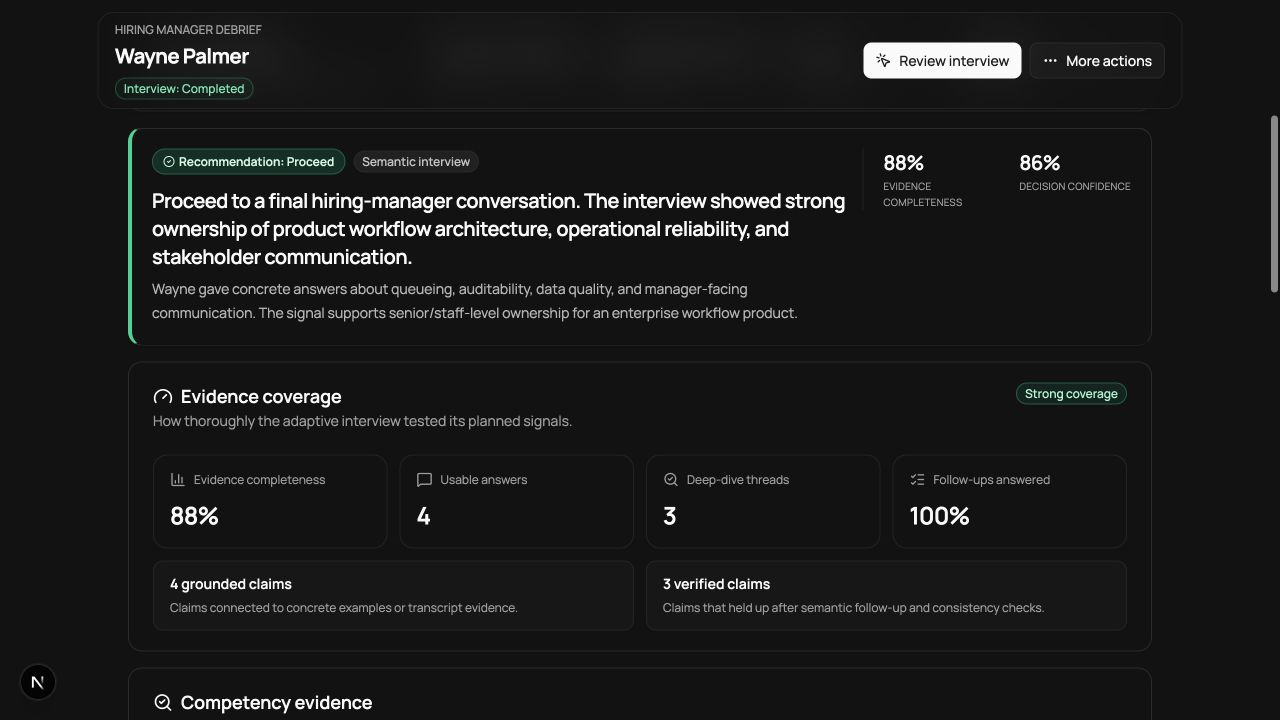
The transcript distinguishes interviewer and candidate turns. Evidence mapping connects scored dimensions to specific answers when available. Use the transcript to validate the summary rather than relying on the score alone.
Review the result
- Confirm that the interview is Completed and its evaluation is available.
- Read the recommendation and stated risk before looking at the overall decision.
- Review each competency and expand it to see the supporting evidence.
- Open Transcript and verify the answers behind important claims.
- Note weak, missing, or interrupted answers for human follow-up.
- Combine interview evidence with the original resume and role report before deciding the next step.
Integrity and recovery
If an interview is interrupted, ask the candidate to follow the recovery message shown in the interview. If scoring does not complete, the report shows that the result is unavailable. If an invitation expires, create a fresh invitation.
See Troubleshooting for microphone, connection, expiry, and scoring recovery.
Human review
Interview recommendations such as Proceed, Borderline, or Not recommended are decision-support outputs. Review the transcript, evidence strength, accessibility considerations, and any technical interruptions before acting.